Scan a project
This page walks you through running a scan from the UI — first a standard scan, then the additional steps for a deep scan (Phase 6 agentic investigation).
Standard scan vs Deep scan
- Standard — function-level scan with the LLM. Fast (seconds–minutes), runs on every scan. Available on Community and Developer.
- Deep — standard scan plus a Phase 6 investigation loop for every HIGH logic-class finding (IDOR, broken auth, broken access). Adds 30–90s per HIGH finding. Developer edition only, and only triggerable from the Project detail page.
Before you scan
- Foil server is running — check the green Connected pill in the top-right of the dashboard, or run
foil status - The active model shows on the Models page; if nothing is active, pick one and hit Activate
- The project you want to scan is on local disk — Foil never copies or uploads source
Step 1 — Register the project
- Go to Projects (
/projects) - Click + REGISTER PROJECT
- Paste the absolute path (e.g.
~/src/myapp) or pick a folder - The new project appears with an
IDLEstatus pill
If the project is already registered (you'll see it in the grid), skip to Step 2.
Step 2a — Standard scan (quick path)
From the Projects grid, click SCAN NOW on the project card.
- Status pill flips to
SCANNING - Progress is visible on the Dashboard (recent scans + queue) and in the Logs page (scan tab)
- When done, the status returns to
IDLEand the severity counts update
The SCAN NOW button on the Projects card always runs a standard scan. It cannot enable Deep.
Alternative one-off path: use the Scan something box on the Dashboard to scan any path without registering it first — also standard-only.
Step 2b — Deep scan (Developer edition)
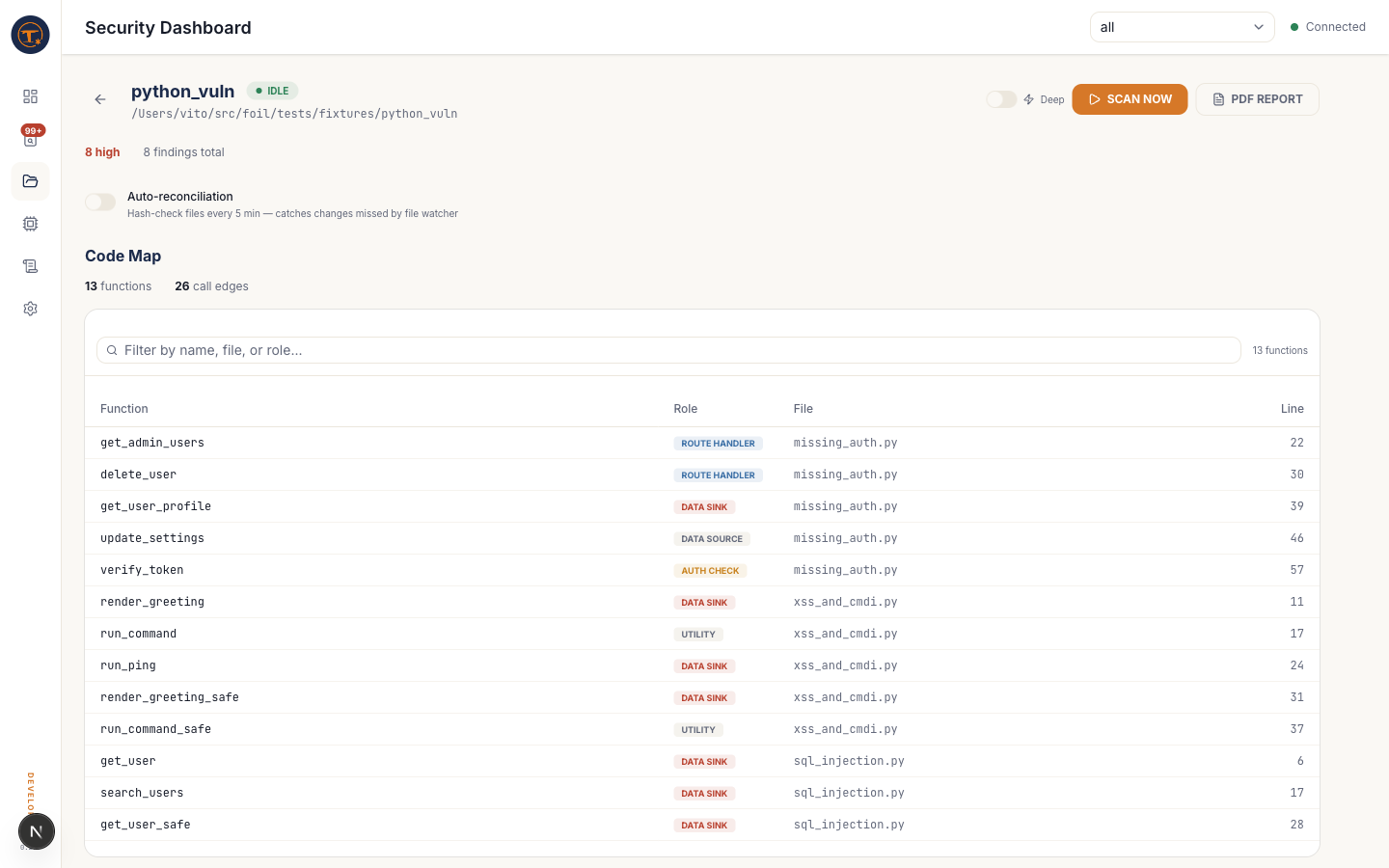
Deep scans can only be launched from Project detail
Neither the Projects grid's SCAN NOW button nor the Dashboard's scan box can enable Deep. You must open the per-project workspace.
- Click DETAILS on the project card, or navigate to
/projects/detail?id=<project-id> - In the header, toggle ⚡ Deep on (it lights up accent-orange)
- Click SCAN NOW
- The scan runs with the
--deepflag. Expect standard-scan time + 30–90s per HIGH logic-class finding.
What Deep adds
For every HIGH finding in a logic class (IDOR, Broken Access Control, Broken Authentication), Foil runs an agentic investigation loop using four read-only inspector tools:
get_function_body— fetch a callee's sourcetrace_variable_origin— check if a variable is a user parameter and whether it's sanitisedcheck_auth_coverage— read auth decorators and auth-classified callerslist_callers_with_roles— enumerate callers with their roles
Each investigation ends with a verdict:
- CONFIRMED — the finding stood up to the extra scrutiny
- DISMISSED — the investigation found the code path is actually safe (common for findings the static scanner over-calls)
- UNCERTAIN — the agent couldn't conclude within its tool-call budget
Step 3 — Watch progress
During a scan:
- Status pill (header of
/projects/detailor the project card) —QUEUED→SCANNING→IDLE - Logs (
/logs, scan tab) — line-by-line trace of the running scan - Dashboard — recent scans list updates in near-real time via WebSocket
You can navigate away; scans run on the server and persist.
Step 4 — Review findings
Once the status returns to IDLE:
- Project detail shows the top 15 findings plus the Phase 6 Investigations list (Deep scans only). Sort by severity, expand for code + recommendation.
- View all → from the Investigations section, or navigate to /findings, for the full filtered list.
- Click Deep dive on a CONFIRMED row to open the full Deep-dive trace.
- PDF Report (Project detail header, Developer edition) — generates a signed PDF of the current findings set. This is the only place to export a report; there is no equivalent on the Findings or Dashboard pages.
Re-scanning
- Incremental — by default, unchanged files are skipped by hash. Just hit SCAN NOW again.
- Force full rescan — use the CLI with
foil scan <path> --rescan. The UI does not expose a rescan-all toggle. - Auto-reconciliation — turn on from Project detail for projects on network drives or iCloud-synced folders, where the file watcher can miss changes.
Quick reference
| I want to… | Where | Deep supported? |
|---|---|---|
| Scan a one-off path | Dashboard → Scan something box | — |
| Scan a registered project (standard) | Projects grid → SCAN NOW | — |
| Run a deep scan | Project detail → Deep toggle + SCAN NOW | |
| Export a PDF report | Project detail → PDF REPORT | — |
| Cancel a running scan | CLI: foil cancel-scan <job-id> |
— |